Application level improvements
Layouts
For the moment, we have just one Twill module with one Inertia page, but we will probably have more page templates with different modules in our application (home, blog, portfolio, contact, customer account, ...).
It may be a good idea to create one (or more) layouts that will be used by our different pages and will be persistent (not destroyed and recreated every visit). For this article, we will create 2 layouts and see how to use it on our pages:
a Default for the common pages (which may have a header with a menu, a footer, ...)
a FullPage for custom pages (like authentication)
Layouts creation
We create our 2 templates in a new directory /resources/views/Components/Layout:
/resources/views/Components/Layout/Default.vue
<template>
  <div class="min-h-full">
    <header class="bg-white shadow">
      <div class="mx-auto max-w-7xl px-4 py-6">
        <h1 class="text-3xl font-bold tracking-tight text-gray-900">My Application</h1>
      </div>
    </header>
    <main>
      <div class="mx-auto max-w-7xl py-6">
        <slot></slot>
      </div>
    </main>
  </div>
</template>
/resources/views/Components/Layout/FullPage.vue
<template>
  <main class="w-full flex flex-col h-screen content-center justify-center">
    <slot></slot>
  </main>
</template>
Configuration
For the moment, our layouts are just Vue components, to make Inertia aware of the layout every page has to load, we need to do some changes in our application entry point in the resolve() method:
/resources/js/app.ts
before:
  resolve: async (name: string) => {
    let page = await resolvePageComponent(`../views/Pages/${name}.vue`, import.meta.glob<DefineComponent>('../views/Pages/**/*.vue'))

    return page
  },
after:
  resolve: async (name: string) => {
    let page = await resolvePageComponent(`../views/Pages/${name}.vue`, import.meta.glob<DefineComponent>('../views/Pages/**/*.vue'))

    page = page.default

    page.layout = (await import(`../views/Components/Layout/${page.layoutName || 'Default'}.vue`)).default

    return page
  },
What it does
To set the page.layout value, it will
look if the page has a
layoutNameoption defined and then load the Component with that name which would be in/resources/views/Components/Layoutdirectoryif not, load the
Defaultlayout
More info in the official documentation.
We don't test if the layout Component file exists, if a wrong name is defined, it will trigger an error:

Define the Layout of the page
Now we can choose our layout on each page.
If you use the unplugin-vue-define-options plugin, it can be done like that:
/resources/views/Pages/Page/Content.vue
<script setup lang="ts">
defineOptions({
  layoutName: 'FullPage',
})

interface Props {
  item: Model.Page
  locale: string
}

defineProps<Props>()
</script>
If not, we need to use Option API like that:
/resources/views/Pages/Page/Content.vue
<script lang="ts">
export default {
  layoutName: 'FullPage',
}
</script>

<script setup lang="ts">
interface Props {
  item: Model.Page
  locale: string
}

defineProps<Props>()
</script>
You should see:
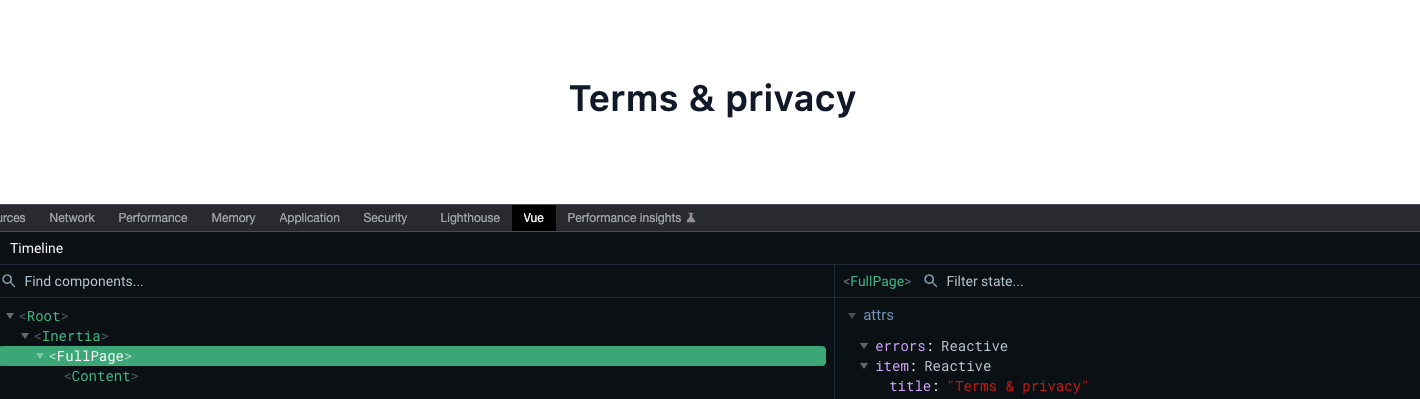
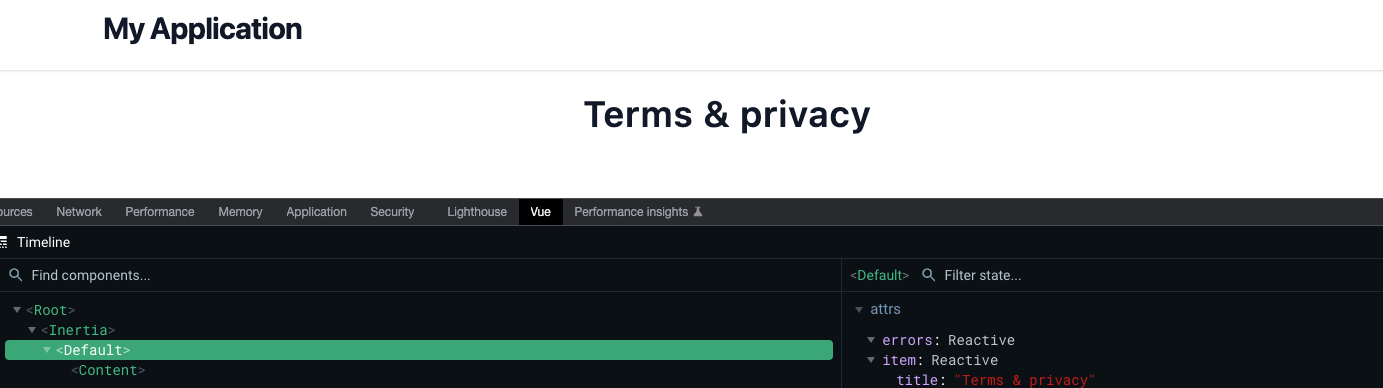
And if you remove the configuration or set layoutName to Default, you should see:
Head
In Web applications, it's a good practice to define a page title, and maybe meta tags (like description). Inertia provides a Head component that helps us for this purpose. More info in the official documentation.
Our Head component
To have a better organization and more flexibility, we will create our Head component that will extend the Inertia's Head component.
/resources/views/Components/Theme/Head.vue
<script setup lang="ts">
import { Head as InertiaHead } from '@inertiajs/vue3'

defineOptions({
  name: 'ThemeHead',
})

interface Props {
  item?: any
  title?: string
  description?: string
}

const props = withDefaults(defineProps<Props>(), {
  item: () => ({}),
  title: '',
  description: '',
})

const appName = 'My Application'

const title =
  props.item && props.item.meta_title && props.item.meta_title != ''
    ? props.item.meta_title
    : props.item && props.item.title && props.item.title != ''
    ? props.item.title
    : props.title

const description =
  props.item && props.item.meta_description && props.item.meta_description != ''
    ? props.item.meta_description
    : props.item && props.item.description && props.item.description != ''
    ? props.item.description
    : props.description
</script>

<template>
  <InertiaHead :title="title ? `${title} | ${appName}` : appName">
    <meta
      head-key="description"
      name="description"
      :content="description"
    />
  </InertiaHead>
</template>
What it does
The component defines title and meta-description tags from props
if an
itemprop is provided (from PageContent, PageHome, BlogArticle, ...), it looks for:meta_titleandmeta_descriptionitem propertiesthen
titleanddescriptionproperties if not defined
if not, looks for
titleanddescriptionprops
The title is filled out by the appName variable (here it is static text My Application, you can make it dynamic or add your logic according to your project needs).
Usage
/resources/views/Pages/Page/Content.vue
<script setup lang="ts">
import Head from '@Theme/Head.vue'

...
</script>

<template>
  <Head :item="item"></Head>
  ...
</template>
If we go back to our Twill module, if we define the SEO information:
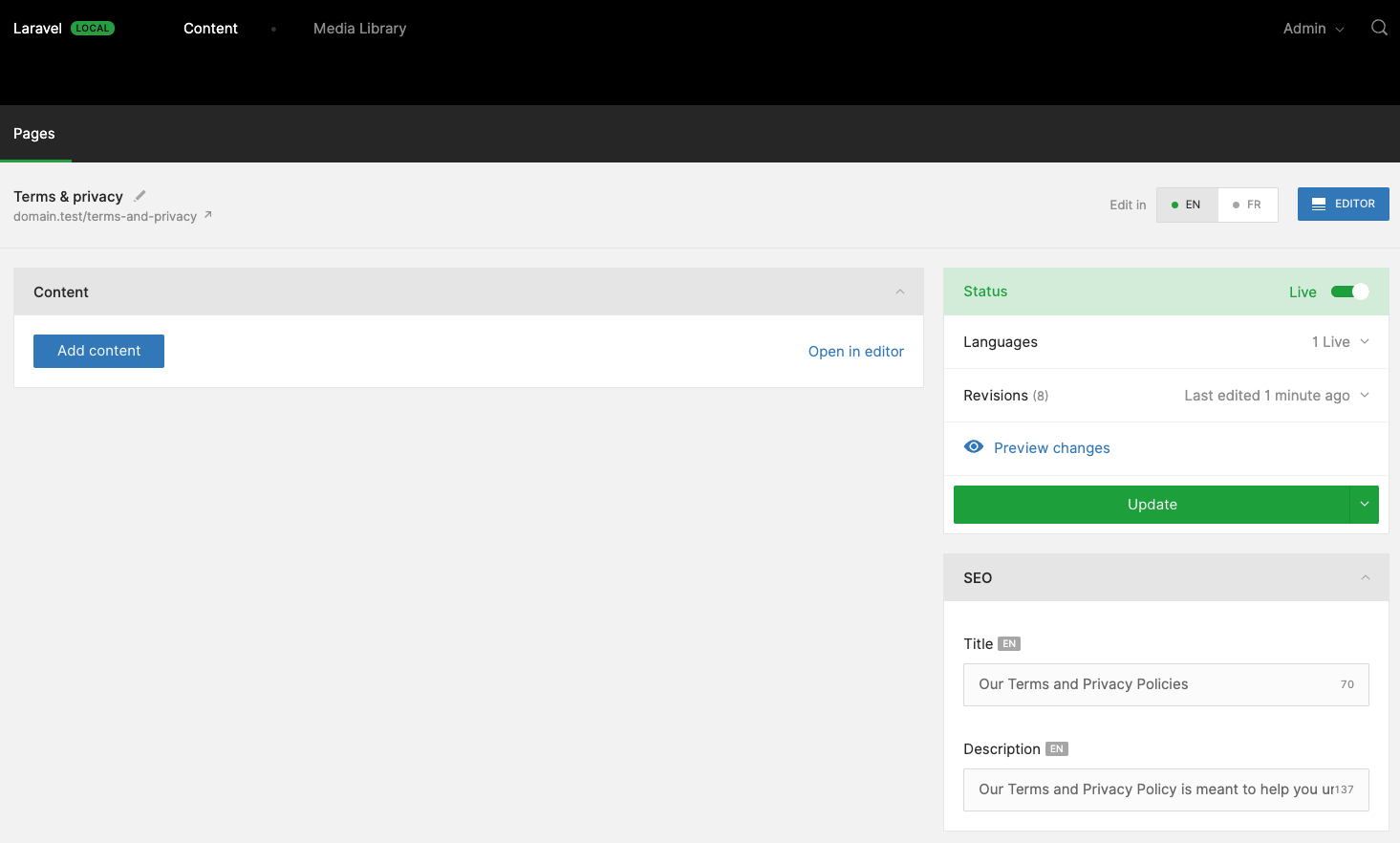
They will be rendered on the HTML page:

We'll do our best to provide source code of the serie on GitHub
Comments
Join the discussionNo comments yet. Be the first to comment.
Laravel / Twill / Inertia / Vite / Vue3 Composition API / TypeScript / Tailwind
Our attempt to build a CMS using Laravel and Twill for the back-end and Inertia with Vite, Vue 3 Composition API, TypeScript and Tailwind for the front-end.